Time Blocking for Beginners: Using a Task Time Tracker

Time blocking means giving each task its own slot on your calendar. This beginner guide walks you through the steps and shows how a simple task time tracker, even a notebook or a spreadsheet, can help you see how long things really take.
Many people start with a to-do list a mile long and a day that somehow ends with half of it untouched. The list wasn't the problem. The problem was that nothing on it had a time attached. "Write report" just floated there, waiting for a moment that never came.
Time blocking for beginners sounds fancy, but it fixed a lot of that for me. The idea is simple: you put tasks on your calendar, not just on a list. Each task gets its own slot, like a meeting with yourself. It sounds rigid, but in practice it feels calmer, because you stop deciding what to do next every twenty minutes.
Here's how I'd start time blocking for beginners if I were doing it for the first time again.
Short on time? Our top picks: Google Calendar, Apple Calendar, Microsoft Outlook and Todoist. See all picks
Start time blocking with your top three tasks
Before you touch your calendar, pick the three tasks that matter most for tomorrow. Not ten. Three.
It's tempting to block out everything. A common mistake in the first week is packing the calendar so full that you give up by Wednesday. Three is enough to make a day feel useful without making it feel like a trap.
A good test: if you only got these three things done, would you feel okay going to bed? If yes, you've picked well. If one of them is "clean out my inbox," be honest with yourself about whether that's really a top task or just a comfortable one.
Some examples of solid picks:
- Finish the first draft of the client proposal
- Call the dentist and the insurance office
- Spend an hour on the side project you keep putting off
Big tasks can feel too foggy to block. If "work on proposal" makes your stomach sink, break it into smaller steps first, like "outline sections" and "write intro." That one move makes the rest of this much easier.
Guess how long things take, then add a buffer
This is where most people (me included) go wrong. We're terrible at guessing time. A task we think takes 30 minutes often takes 50, because we forget about finding the file, answering one quick message, or getting a coffee.
So make your best guess, then add a cushion. A good habit is to add about half again on top. If I think something takes an hour, I block an hour and a half. If it's done early, great. You get a little free time, and that never feels bad.
After a week or two, you'll start to notice patterns. Maybe writing always runs long for you, but admin tasks go faster than expected. Jot those down. Your guesses will get better, and so will your calendar.
Put real hours on your calendar for each task
Now open your calendar, paper or digital (something like Google Calendar works fine), and give each task a specific start and end time. "Tuesday, 9:00 to 10:30: proposal outline." Not "sometime Tuesday morning."
The specific time is the whole point. When 9:00 comes, you don't have to think. You just start.
A few things I've learned about where to put blocks:
- Put your hardest task in the time of day you think most clearly. For me that's mornings, before anyone else is awake and asking for things. For a friend of mine, it's late afternoon. Neither is wrong.
- Add your fixed stuff first: meetings, school pickup, the gym class you've already paid for. Then fit your tasks around those.
- Don't forget lunch. I've blocked straight through lunch more than once, and the afternoon always paid for it.
If you like working on paper, the Weekly Planner Layout Pack below this post has pages set up for this kind of planning. You don't need it, though. A plain notebook with times written down the side works fine.
And if you'd like to try a page before buying anything, I've made a Free Weekly Planner Page in 2 Layouts that you can get by joining the email list.
Batch the small, similar stuff
Emails, quick replies, little errands, filing. These tiny tasks will eat your whole day if you let them pop up whenever they want.
Instead, group them together. You can check email in two blocks a day, one late morning and one before you finish up. That's it. The rest of the time, the inbox stays closed. The first few days felt strange, like I was missing something important. Most people aren't. Almost nothing in my inbox needed an answer within the hour.
Other things that batch well:
- Phone calls and voicemails
- Paying bills or doing small admin
- Errands that are in the same part of town
- Social media posting, if that's part of your work
Your brain doesn't love switching gears. Every time you jump from writing to email and back, it takes a few minutes to settle in again. Batching cuts down on all that switching.
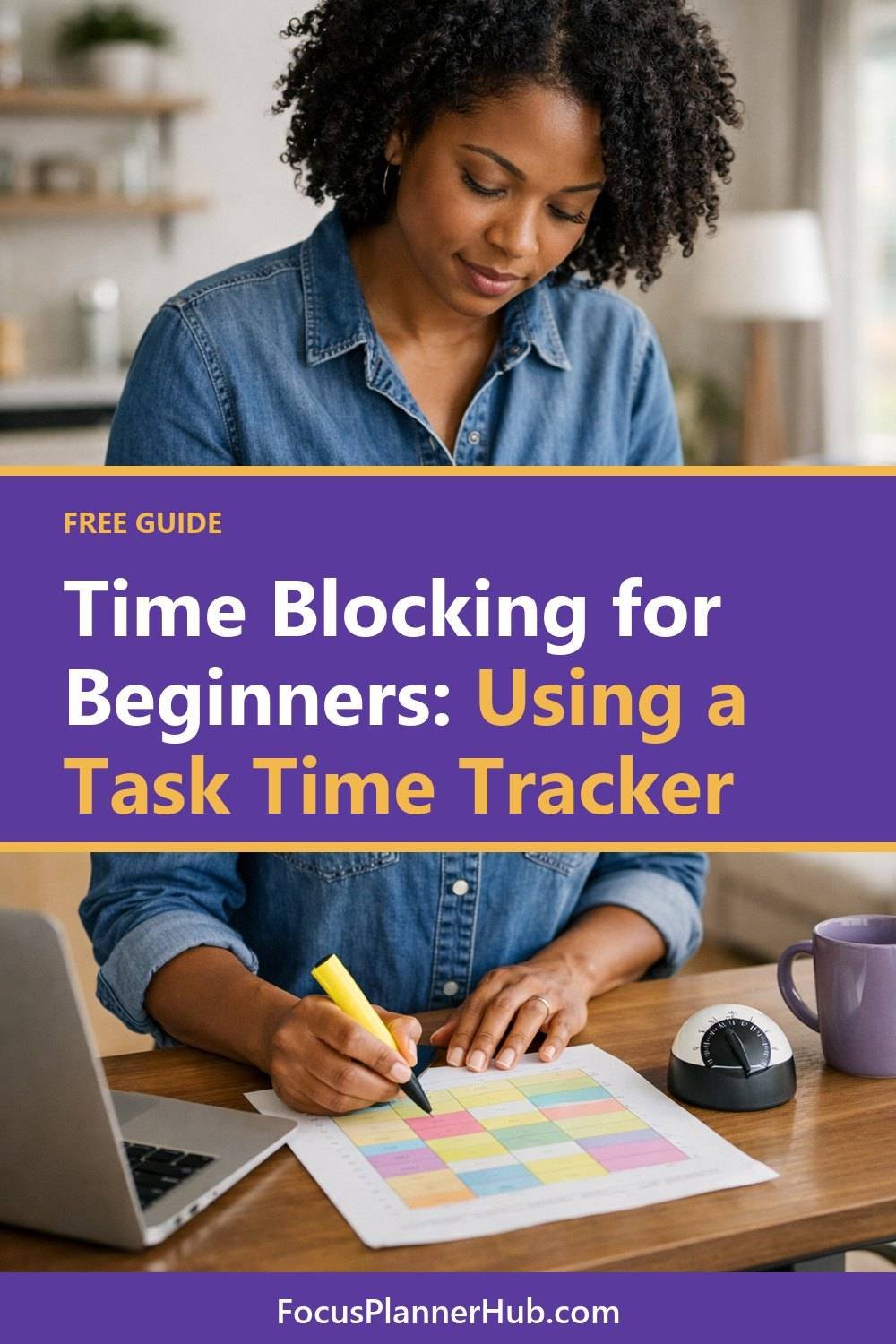
Leave room for the stuff you can't plan
Here's an honest opinion: a calendar with zero empty space is a fantasy. Something will go wrong. A kid gets sick, a coworker needs help, your laptop decides to update right when you sit down.
So leave flexible blocks. Keep one or two 30 to 60 minute open slots in your day. If nothing comes up, use those blocks to catch up or get ahead. If something does come up, I don't have to wreck my whole plan to deal with it.
Think of these blocks like the spare tire in your car. You hope you won't need it, but you're glad it's there.
What I'd skip: color-coding every single block into twelve categories. Spending a whole Sunday on that is a common mistake. It looked lovely and I stopped using it in a week. Two or three colors at most, if any.
Look back at your day with a task time tracker
Take five minutes before you close up for the day. Look at what you planned and what really happened. No judging, just noticing.
Ask yourself a couple of quick questions:
- Which blocks went to plan?
- Which ones ran over, and by how much?
- What pulled me off track?
Then use that to plan tomorrow. If your morning block always gets interrupted, maybe move it earlier or shut your door. If you keep skipping your afternoon tasks, maybe you've packed too much in.
This little review is the part most people skip, and it's the part that makes time blocking get easier instead of harder. Some days your plan will fall apart by 10 a.m. That's normal. Move the blocks around and keep going.
A simple example day
Here's roughly what a beginner-friendly day might look like:
- 8:30 to 10:00: Top task one, deep focus, phone in another room
- 10:00 to 10:15: Break
- 10:15 to 11:00: Email and messages batch
- 11:00 to 12:00: Top task two
- 12:00 to 1:00: Lunch, actually away from the desk
- 1:00 to 2:00: Flexible block
- 2:00 to 3:30: Top task three
- 3:30 to 4:00: Second email batch and quick admin
- 4:00 to 4:10: Review and plan tomorrow
Yours will look different, and it should. Use this as a rough shape, not a rule.
Tools that make time blocking easier
You can time block with almost anything, but a few tools make it simpler to start and stick with. Here are some well-known options for different habits and budgets.
Google Calendar
A good fit if you want a free, familiar calendar that works on phone and computer. Check how its notifications and shared calendars are set up so your blocks don't get buried under other events.
Apple Calendar
Suits people who already live in the Apple ecosystem and want blocks to sync across their devices. Check that it works for you if you also use non-Apple devices at work or home.
Microsoft Outlook
Handy if your job already runs on Outlook email and meetings, since your blocks sit right beside them. Check your workplace's sharing settings so your personal blocks show up the way you want.
Todoist
Suits people who keep a running task list and want to pull items into a day plan. Check how well it connects with your calendar before you commit.
Notion
A flexible workspace for people who like building their own planning pages and task lists. Check whether you'll enjoy setting it up, since it can take time to get a layout you like.
Clockify
A simple time tracker for people who want to see how long tasks really take and improve their guesses. Check which tracking features are on the plan you pick.
Toggl Track
Suits those who want an easy start and stop timer to compare planned and actual time. Check that the reports show what you need, such as time by task or project.
Check current plans and prices on each brand's own site before you choose.
FAQ
Do I need a task time tracker or special app for time blocking?
No. Any calendar works, including the one already on your phone, and a simple task time tracker like Toggl Track is optional. Plenty of people prefer paper because writing it down helps them remember it.
What if I keep falling behind my schedule?
That usually means your time guesses are too short or you've planned too much. Add bigger buffers and cut back to fewer tasks for a week. It's a skill, and it gets better with practice.
Should I block every minute of my day?
It's best not to. Blocking every minute leaves no room for real life, and you'll feel like you're failing all the time. Block your main tasks and leave some open space.
How long before time blocking for beginners starts to feel natural?
It's different for everyone. For me, the first week felt clunky and the second felt a lot smoother. Give it a fair try before deciding it's not for you.
Wrapping up
Time blocking comes down to a few habits: pick your top three tasks, guess the time and add a buffer, put them on real hours, batch the small stuff, leave space for surprises, and check in at the end of the day. None of it needs to be perfect to help.
If you want to start tomorrow, grab the Free Weekly Planner Page in 2 Layouts by signing up for the email list, and try planning just one day with it. If you like how it goes and want more structure, take a look at the Task Breakdown and Time-Blocking Workbook and the Weekly Planner Layout Pack below this post.
Printables and tools that can help
Task Breakdown and Time-Blocking Workbook
A printable workbook for breaking tasks into small steps and blocking time. A planning tool, not a medical...
See detailsWeekly Planner Layout Pack
Five printable weekly planner layouts so you can pick the one that fits how you...
See details